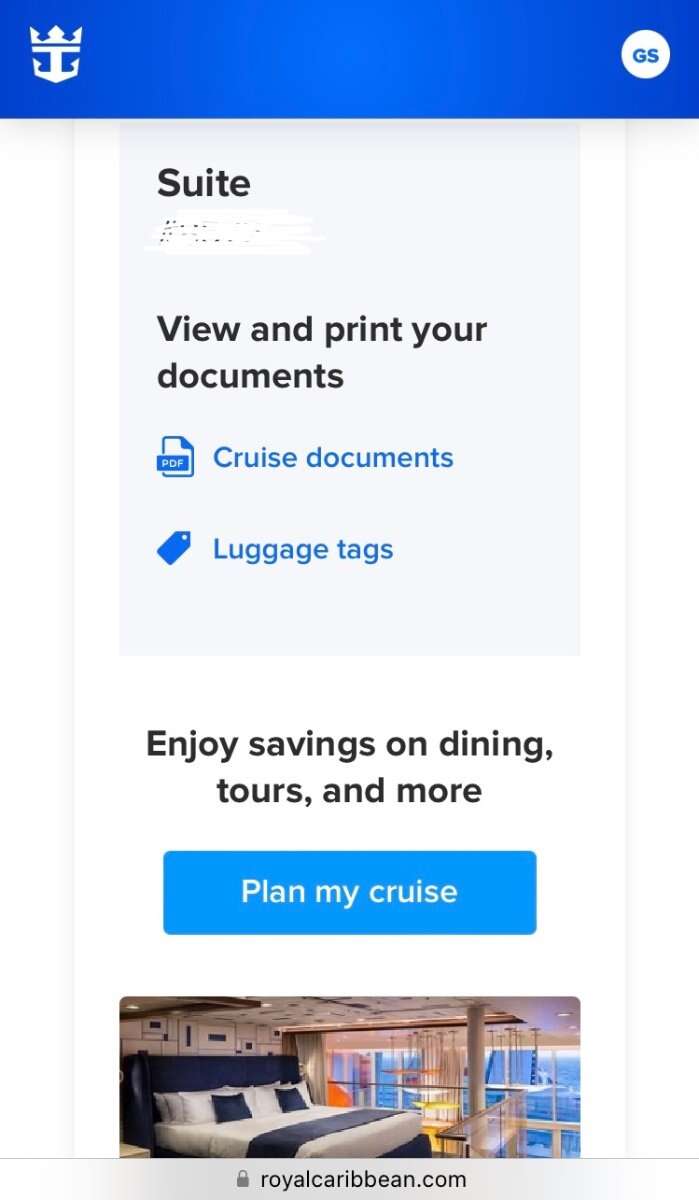
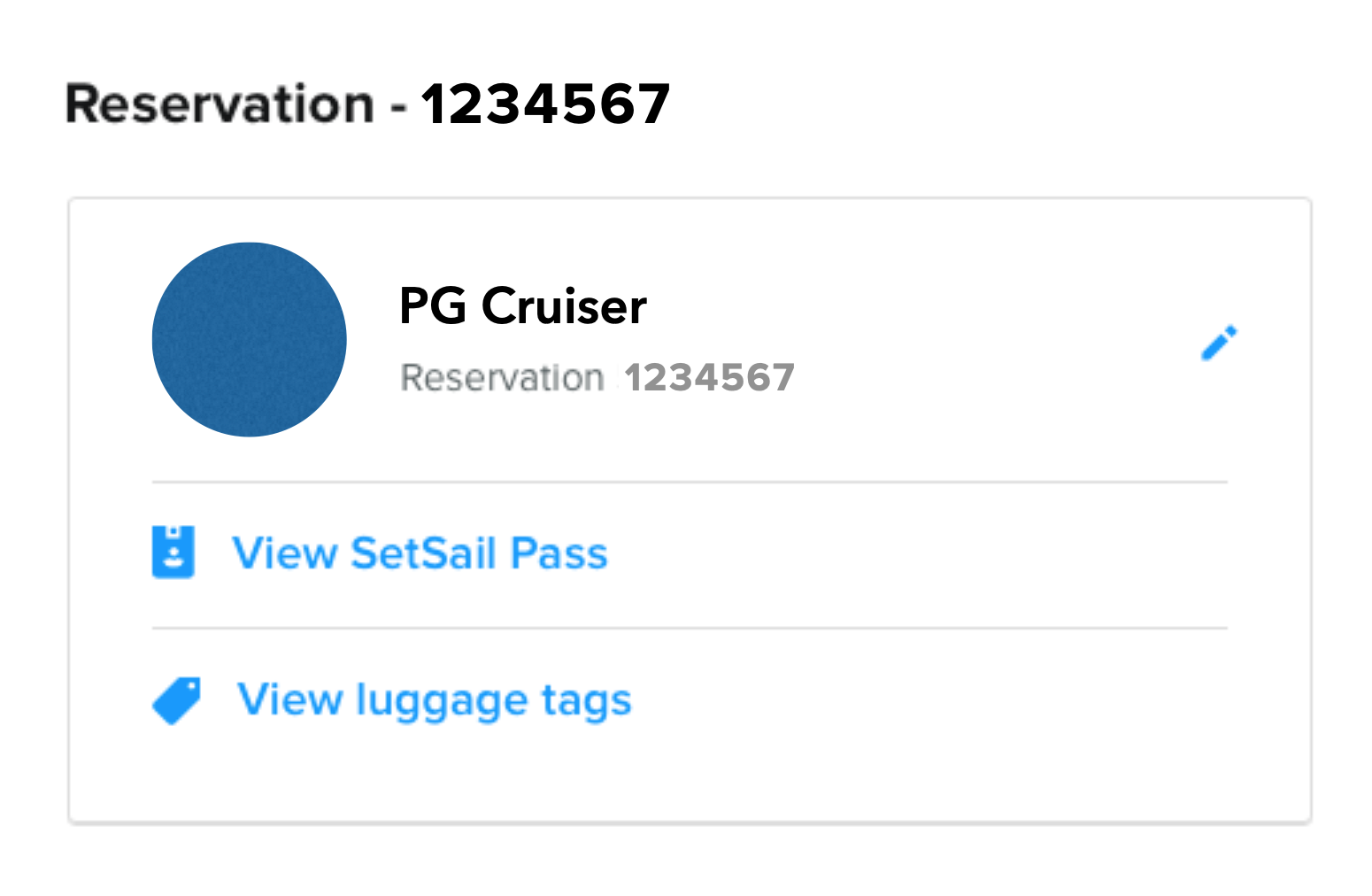
If you are sailing from a U.S. port, you can usually find your Royal Caribbean luggage tags after you complete online check-in. Open the Royal Caribbean app, select your upcoming cruise, and look in the Check-In, Travel Documents, or Luggage Tags area. The exact label may vary by app version, ship, and sailing.
Luggage tags help Royal Caribbean staff deliver checked bags to your stateroom. They are different from your SetSail Pass, which you use for terminal entry and boarding.

How to find luggage tags in the Royal Caribbean app
The fastest path is to open your booked cruise and enter the check-in section.
Follow these steps:
- Open the Royal Caribbean app on your phone.
- Sign in to the Royal Caribbean account linked to your reservation.
- Tap Upcoming Cruises or select the cruise shown on the home screen.
- Tap Check-In, Cruise Check-In, or a similar option.
- Complete the required check-in steps for each guest.
- Look for Luggage Tags, View Luggage Tags, Travel Documents, or Print Luggage Tags.
- Open the tag file or tag screen.
- Save the file, email it to yourself, or print it from a larger device.
- Print one tag for each checked bag.
Royal Caribbean may not show the luggage tag option until check-in is open. The app can also hide the option until you enter key details, such as each guest’s identification information, emergency contact details, and arrival information.
If you see a SetSail Pass but no luggage tags, that does not always mean something is wrong. The boarding pass and luggage tags are separate documents.
What the luggage tag screen may look like
Depending on your sailing, the app may use one of these paths:
- Upcoming Cruise → Check-In → Luggage Tags
- Upcoming Cruise → Check-In → Travel Documents
- Upcoming Cruise → Boarding Documents → Luggage Tags
- Upcoming Cruise → More → Check-In → Print Luggage Tags
Royal Caribbean updates its app from time to time. Menu names may differ between iPhone and Android devices, and a ship or itinerary may affect what you see.
The best clue is the cruise-specific check-in area. Start there rather than searching the general app menu.
When do Royal Caribbean luggage tags become available?
Luggage tags normally become available after online check-in opens and the guest completes enough of the check-in process.
The exact release time can vary. It may depend on:
- Your sailing date
- Whether online check-in is open
- Whether every guest has completed required check-in fields
- Your ship and itinerary
- The current Royal Caribbean app version
- Whether you booked directly or through a travel agency
- Whether the reservation has been linked correctly to your account
Royal Caribbean often opens check-in before the cruise, but the exact timing can change. Check the date shown inside the app instead of relying on a general countdown found elsewhere online.
What you need before looking for the tags
Have these details ready:
- Your Royal Caribbean reservation number
- The name used on the booking
- Each traveler’s identification document
- A home or contact address, when requested
- An emergency contact
- Your planned arrival information
- A printer, if you want to print the tags at home
if another person booked your cruise, you may need to link the reservation to your Royal Caribbean account. Use the reservation number and the requested guest details.
Why the option may not appear yet
The luggage tag link may be missing because:
-
Check-in has not opened.
The app may show cruise details but not travel documents. -
Your check-in is incomplete.
Review each guest profile and look for fields marked incomplete. -
The app is not showing the latest booking data.
Close the app, sign out, sign back in, and check for an update. -
The reservation is not linked to the right account.
Confirm that the reservation number and guest name match the booking. -
The app is having a temporary problem.
Try the Royal Caribbean website through a web browser. -
Your booking has a special status.
Group bookings, travel-agent bookings, changed reservations, or recently modified bookings may not display all documents at once.
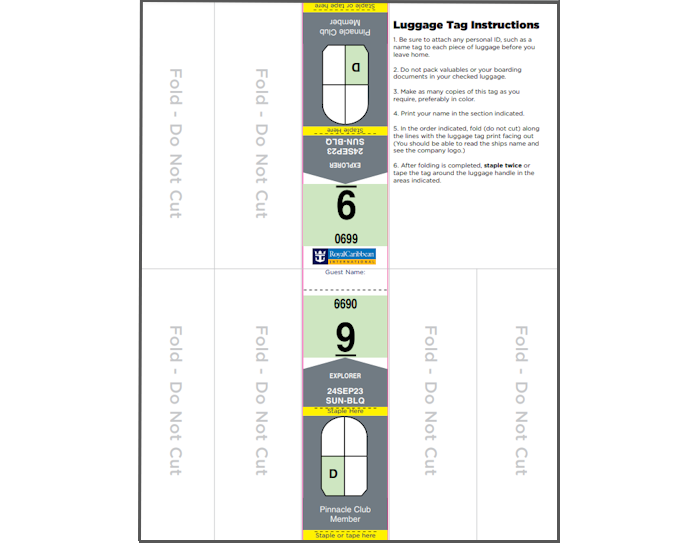
How to print and attach Royal Caribbean luggage tags
Once you open the luggage tag document, print it before leaving for the port.
Use these steps:
- Print the tag on standard letter-size paper.
- Print one tag for every checked suitcase.
- Check that your name, ship, sailing date, and stateroom information are correct.
- Fold the paper along the marked lines, if shown.
- Secure the tag around the suitcase handle.
- Use a strong stapler, clear luggage-tag holder, or another method that follows the printed instructions.
- Remove old airline and cruise tags before you travel.
Do not place the luggage tag on a carry-on bag that will stay with you. The tag is meant for checked luggage that port staff will take and deliver to your stateroom.
Check the tag before you leave
Look closely at the printed information. Make sure:
- The guest name is correct.
- The stateroom number is correct.
- The ship name matches your cruise.
- The sailing date is correct.
- The barcode or scan area is clear.
- The paper is not cut through the printed details.
If any detail is wrong, do not assume the port staff can correct it without delay. Contact Royal Caribbean or your travel adviser before departure when possible.
Protect the paper tag
Paper tags can tear in rain, during airport transfers, or while bags move through the terminal. A reusable cruise luggage-tag holder can protect the paper, but it is not required. If you use one, make sure the full tag remains visible and the holder fits the suitcase handle.
You can also wait to attach the tags until you reach the cruise terminal. This may help prevent damage during a flight or long drive. Keep the printed tags in your carry-on until you are ready to check the bags.

What to do if you cannot find luggage tags in the app
If the app does not show luggage tags, use this troubleshooting order.
1. Confirm that you selected the right cruise
A Royal Caribbean account can contain more than one reservation. Open the sailing that matches your ship and departure date. A tag from another booking will not work for your current cruise.
2. Finish online check-in for every guest
Open each traveler’s check-in profile. Look for missing information, document errors, or a request to confirm the guest photo. The luggage tag link may appear only after the required steps are complete.
3. Update and restart the app
Install the latest available version from the Apple App Store or Google Play. Then close and reopen the app. If the problem continues, sign out and sign in again.
Avoid deleting the app unless you know your login details and reservation information. Reinstalling it may not solve a booking-side problem.
4. Try the Royal Caribbean website
Sign in to your Royal Caribbean account through a web browser. Open the reservation and enter the online check-in or travel-document area. A browser can sometimes display a document that the mobile app does not load correctly.
Use a computer if the file needs to be downloaded or printed. A phone screen is useful for viewing information, but it may not produce a full-size printed tag.
5. Check for recent booking changes
A cabin change, name correction, itinerary change, upgrade, or reservation transfer can delay document updates. Allow time for the new information to appear, then check again.
If you booked through a travel agency, ask the agency to confirm that the reservation is properly linked and that no action is pending.
6. Contact Royal Caribbean before travel
Contact Royal Caribbean or your travel adviser if:
- Your stateroom number is missing or wrong.
- The app shows a different ship or sailing date.
- You completed check-in but cannot access any luggage document.
- Your reservation was recently changed.
- The website and app show different information.
- You are leaving soon and cannot print the tags.
At the U.S. cruise terminal, port staff may be able to provide or replace luggage tags. However, do not depend on this as your main plan. Terminal procedures can vary, and arriving with the correct tags can make bag drop faster.
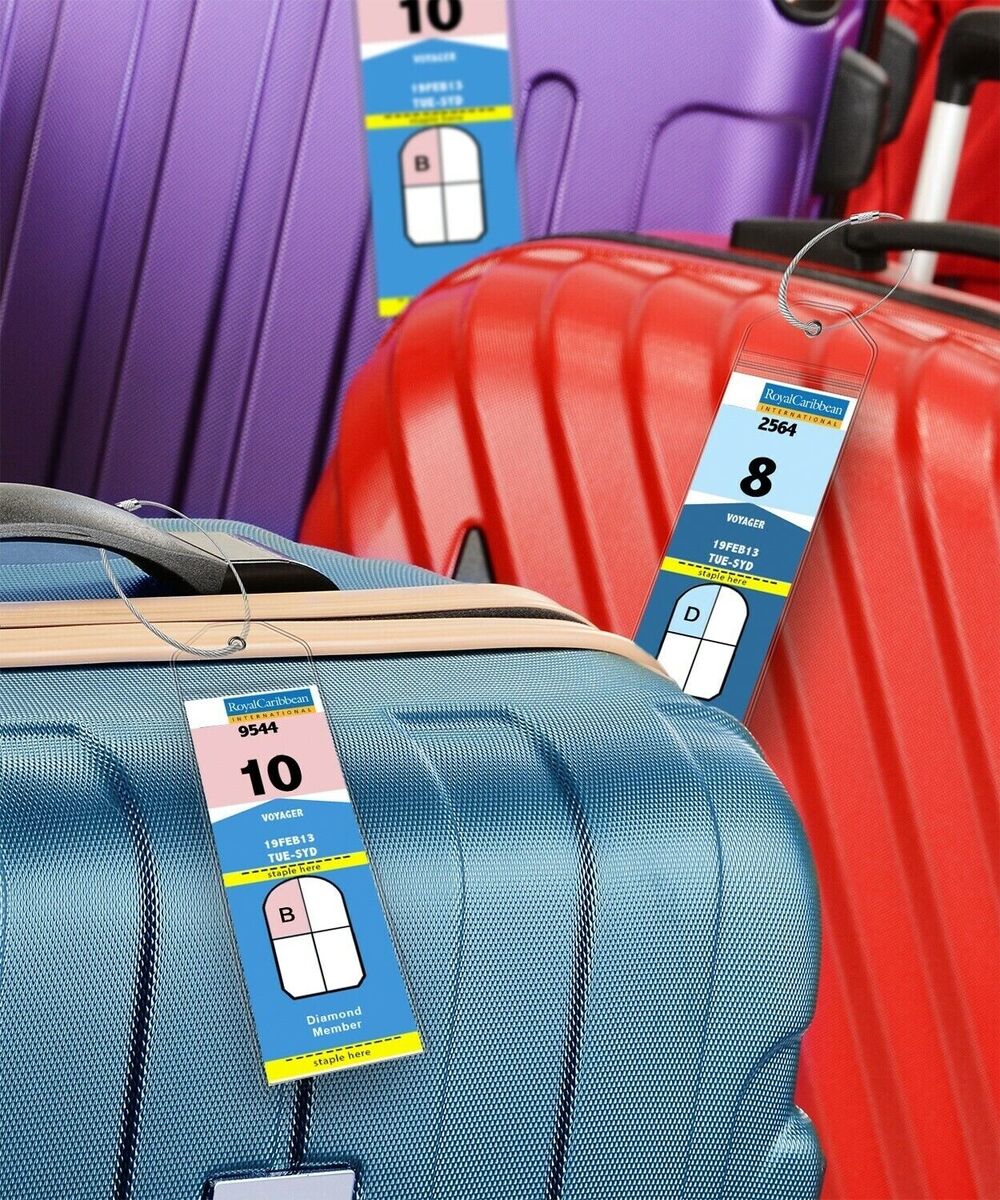
Common mistakes with Royal Caribbean luggage tags
Most luggage-tag problems come from using an old document or attaching the tag too early.
Using a tag from a previous cruise
Do not reuse an old Royal Caribbean tag. Each tag is tied to a particular ship, sailing, and stateroom.
Confusing a SetSail Pass with a luggage tag
Your SetSail Pass is used for check-in and boarding. A luggage tag directs checked bags to your stateroom. Keep both documents available, but use each for its intended purpose.
Printing only one tag
Print a separate tag for every checked bag. Do not assume one tag can cover several suitcases.
Checking bags without keeping essentials
Keep passports or other required travel documents, medicines, valuables, electronics, and items needed on the first day in your carry-on. Checked bags may not reach your stateroom immediately after boarding.
Attaching tags before a flight
Paper tags can rip or become unreadable during air travel. If you are flying to a U.S. cruise port, carry the printed tags with you and attach them when you reach the cruise terminal.
Covering the barcode
A fold, staple, plastic edge, or luggage strap should not cover the barcode or key text. Staff need to read or scan the tag.
Leaving old tags on the suitcase
Remove old airline, hotel, and cruise tags. Extra labels can confuse baggage handlers or hide the current tag.

Quick takeaways
- Look in your selected cruise’s Check-In or Travel Documents section.
- Complete online check-in before expecting the luggage tag option to appear.
- Print one tag for each checked bag.
- Confirm the ship, sailing date, guest name, and stateroom number.
- Keep tags in your carry-on if you are flying to the port.
- Use the SetSail Pass for boarding; use the luggage tag for checked bags.
- If the app fails, try the website and contact Royal Caribbean or your travel adviser.
Frequently asked questions
Can I get Royal Caribbean luggage tags without the app?
Yes. Check your reservation through the Royal Caribbean website. If you still cannot access the tags, contact Royal Caribbean or the travel agency that manages your booking. Port staff may also provide tags at the terminal, but availability and procedure can vary.
Do I need to print Royal Caribbean luggage tags?
If you plan to check a bag, printing the luggage tag is the safest option. A phone screen is not a practical replacement for a paper tag attached to a suitcase.
Can I attach luggage tags at the cruise port?
Usually, you can wait until you reach the port. If you are flying, this is often better than attaching paper tags before the flight. Keep the tags flat and protected in your carry-on.
Why does my SetSail Pass appear but my luggage tags do not?
The two documents are separate. Your SetSail Pass may be ready while the luggage tag link is still hidden because check-in is incomplete, the app has not refreshed, or the reservation data has not updated.
What if my luggage tag shows the wrong stateroom?
Do not use it. Check the reservation again through the app and website. If the wrong room remains, contact Royal Caribbean or your travel adviser before going to the port.
Do carry-on bags need Royal Caribbean luggage tags?
No. A carry-on stays with you and normally does not need a checked-bag tag. Put the tag on bags you plan to hand to port staff.
Final answer
To find luggage tags on the Royal Caribbean app, open your upcoming cruise, tap Check-In, and look for Luggage Tags, Travel Documents, or Print Luggage Tags. Complete the required check-in steps first. If the option is missing, check the reservation on the Royal Caribbean website, update the app, and contact Royal Caribbean or your travel adviser if the problem continues.